diff --git a/DotNetTry.md b/DotNetTry.md
deleted file mode 100644
index 2388ce833a..0000000000
--- a/DotNetTry.md
+++ /dev/null
@@ -1,28 +0,0 @@
-# Try .NET  -|| [**Basics**](#basics) • [**Experiences**](#experiences) || [**Setup**](#setup) • [**Getting Started**](#getting-started) || [**Samples**](https://github.com/dotnet/try-samples) ||
-
-
-
-[](https://dev.azure.com/dnceng/public/_build/latest?definitionId=495&branchName=master)
-
-**What is Try .NET?**: Try .NET is an interactive documentation generator for .NET Core.
-
-## Experiences
- Use Try .NET to create executable C# snippets for your websites, or interactive markdown files that users can run on their machine.
-
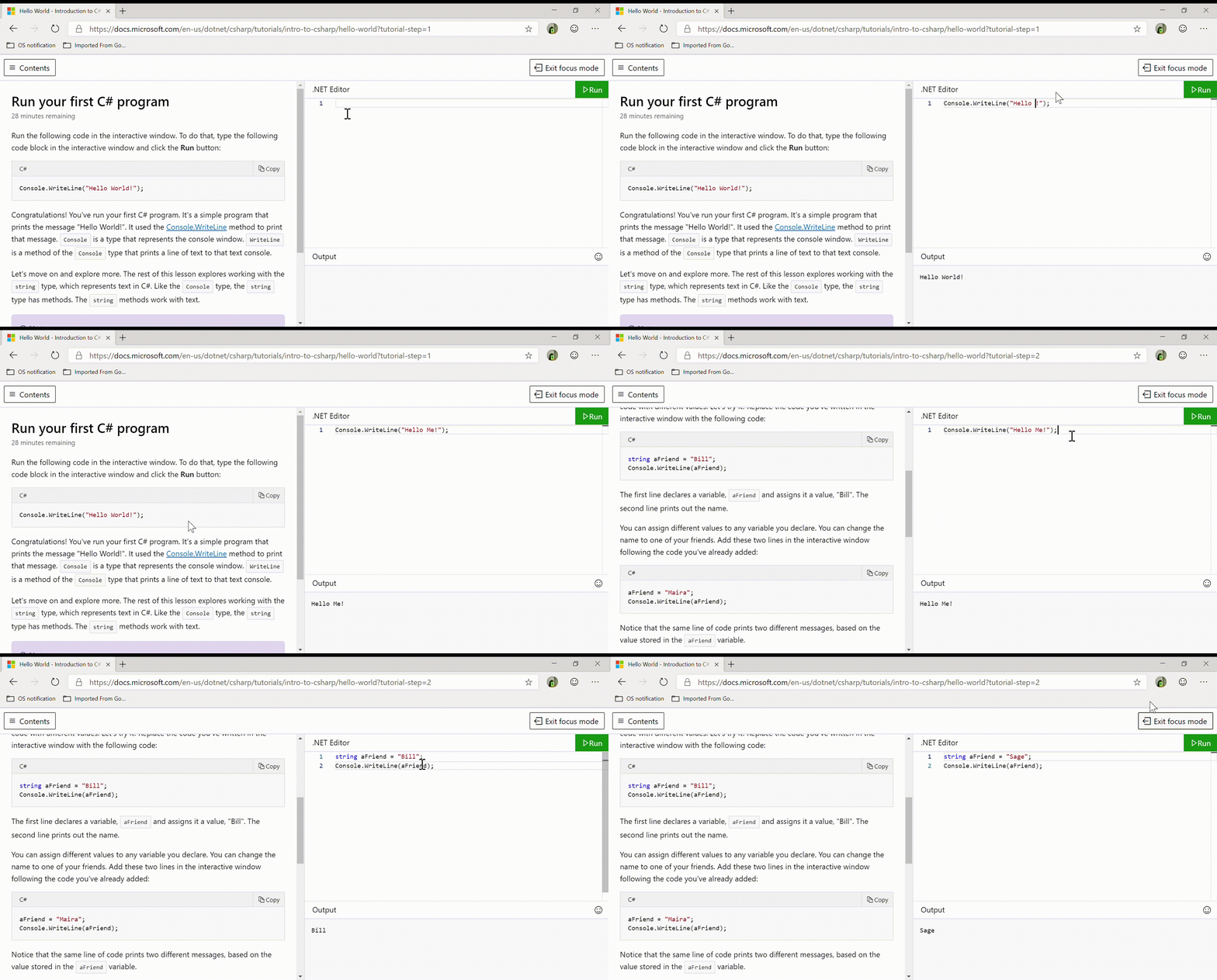
-### Online, powered by Blazor
-
-Microsoft Docs uses Try .NET to create interactive documentation. Users can run and edit code all in the browser.
-
-_**Please Note**: At the moment, the Try .NET online experience only works with C# documentation._
-
-
 -
-### Interactive .NET documentation
-
-Try .NET enables .NET developers to create interactive markdown files.
-To make your markdown files interactive, you will need to [.NET Core 3.0 SDK](https://dotnet.microsoft.com/download/dotnet-core/3.0), the dotnet try global tool and [Visual Studio](https://visualstudio.microsoft.com/) / [VS Code](https://code.visualstudio.com/)(or any other editor of your choice).
-
-
 -
-To get started follow [setup](DotNetTryLocal.md) instructions
diff --git a/DotNetTryLocal.md b/DotNetTryLocal.md
deleted file mode 100644
index f798cc6c6f..0000000000
--- a/DotNetTryLocal.md
+++ /dev/null
@@ -1,76 +0,0 @@
-# Getting started with dotnet try
-## Setup
-Before you get can started creating interactive documentation, you will need to install the following:
-
-- The [.NET Core 3.0 SDK](https://dotnet.microsoft.com/download/dotnet-core/3.0)
-- The [.NET Core 2.1 SDK](https://dotnet.microsoft.com/download/dotnet-core/2.1)
-- The [dotnet try](https://www.nuget.org/packages/dotnet-try/) global tool
-
-Updating to the latest version of the tool is easy. Run the following command:
-
-```console
-> dotnet tool update -g dotnet-try
-```
-
-## Installing preview builds from `master`
-
-To install the latest preview build from master, first uninstall the existing version of the tool:
-
-```console
-> dotnet tool uninstall -g dotnet-try
-```
-Then, install from the preview package feed:
-
-```console
-> dotnet tool install -g --add-source "https://dotnet.myget.org/F/dotnet-try/api/v3/index.json" dotnet-try
-```
-
-## Getting Started
-
-You can get started using either one of the options below.
-
-### Option1: `dotnet try demo`
-
-- Create a new folder.
-- `cd` to your new folder.
-- Run command `dotnet try demo` : This will load our interactive dotnet try getting started tutorial.
-
-The tutorials below work you through the following:
-
-- Creating a new Try .NET project.
-- Display interactive snippets using C# regions.
-- Creating Sessions
-- Verifying your projects: `dotnet try verify` a compiler for your documentation.
-- Passing Arguments
-- Using read only snippets
-
-### Option 2: Starting from scratch.
-1. Go to the terminal and create a folder called `mydoc`.
-2. `cd` to the `mydoc` folder and create a new console app with the following command:
-
-```console
-> dotnet new console -o myApp
-```
-This will create a console app with the files `myApp.csproj` and `Program.cs`.
-
-3. Open the `mydoc` folder in Visual Studio Code.
-
-4. Create a file called `doc.md`. Inside that file, add some text and a code fence:
-
-````markdown
-# My Interactive Document:
-
-```cs --source-file ./myApp/Program.cs --project ./myApp/myApp.csproj
-```
-````
-5. Now, navigate to the `mydoc` folder in your console and run the following command:
-```console
- > dotnet try
-```
-You have created your first C# interactive developer experience. You should now be able to run your console app and see the result in the browser.
-
-### Option 3: Explore our [samples repo](https://github.com/dotnet/try-samples).
-- Clone the [dotnet/try-samples](https://github.com/dotnet/try-samples) repo.
-- Follow the quick steps listed [here](https://github.com/dotnet/try-samples#basics) to get started.
-
-Return to [README.md](README.md)
diff --git a/NotebooksLocalExperience.md b/NotebooksLocalExperience.md
index ed497e5a54..ada5f239d7 100644
--- a/NotebooksLocalExperience.md
+++ b/NotebooksLocalExperience.md
@@ -46,7 +46,7 @@ To launch JupyterLab, you can either type `jupyter lab` in the Anaconda Prompt o
Once Jupyter Lab has launched in your browser, you have the option to create a notebook for C# or F#.
-
 +
 Once the notebook opens, you can start working with .NET in the language you chose.
diff --git a/NotebooksOnBinder.md b/NotebooksOnBinder.md
index 5a8030dcae..442d26acd3 100644
--- a/NotebooksOnBinder.md
+++ b/NotebooksOnBinder.md
@@ -1,6 +1,6 @@
# Use our latest version on [Binder](https://mybinder.org/)
-## Zero install. Try .NET with Jupyter.
+## Zero install. .NET Interactive with Jupyter.
**Requirement:** All you need is your browser.
@@ -15,7 +15,7 @@ To get you started, we created a set of samples in C# and F#. These samples hav
- This launches the binder service. If this is your first time visiting, it'll take a minute or two to cold start.
-
 +
 - Select one of the .NET folder options, `csharp` (C#) or `fsharp` (F#).
@@ -40,6 +40,7 @@ To get you started, we created a set of samples in C# and F#. These samples hav
 - Now, you can run and edit the cells, import and plot data.
+

 @@ -52,4 +53,4 @@ Now that you have had a tour of .NET notebooks with binder, you can get started
Follow the link below to get started.
-[Create your notebook on your machine](NotebooksLocalExperience.md)
\ No newline at end of file
+[Create your notebook on your machine](NotebooksLocalExperience.md)
diff --git a/README.md b/README.md
index 26d8f6117b..b4a27f1dde 100644
--- a/README.md
+++ b/README.md
@@ -1,35 +1,30 @@
-# Try .NET
+# .NET Interactive
|| [**Contribution Guidelines**](#contribution-guidelines) || [**Table of contents**](#table-of-contents) || [**Customers & Partners**](#customers--partners) ||
-
+[](url)
[](https://dev.azure.com/dnceng/public/_build/latest?definitionId=495&branchName=master)
-## Welcome to the Try .NET repo.
+## Welcome to the .NET Interactive repo.
-Try .NET provides developers and content authors with tools to create interactive experiences.
+ .NET interactive provides data Scientists and developers a way to explore data, experiment code, and try new ideas effortlessly. Use .NET interactive to build .NET Jupyter notebooks.
-There are different flavors of Try .NET interactive experiences, from the web experience powered by Blazor (as seen on [Microsoft docs](https://docs.microsoft.com/en-us/dotnet/csharp/tutorials/intro-to-csharp/hello-world)), to interactive documentation for .NET Core with the [dotnet try global tool](DotNetTry.md), to [.NET Jupyter Notebooks](Notebook.md).
-
-## Flavors of Try .NET
-
-### Try .NET Online
+### Jupyter Notebooks with .NET
-
+
+
 -### Interactive .NET Core documentation with the `dotnet try` global tool
+## Table of Contents
-
+# Jupyter Notebooks with .NET Core | Preview 2
 -### Jupyter Notebooks with .NET
+There are several ways to get started using .NET with Jupyter.
-
-
+- [Try sample .NET notebooks online using Binder](NotebooksOnBinder.md). This also allows you try out our daily builds.
+- [Create and run .NET notebooks on your machine](NotebooksLocalExperience.md).
+- [Share your own .NET notebooks with others online using Binder](CreateBinder.md).
-## Table of Contents
-- [Getting Started with Try .NET](DotNetTry.md): Interactive documentation generator for .NET Core.
-- [Getting started with .NET Jupyter Notebooks](Notebook.md) : Write and run .NET code in Jupyter Notebooks
## Contribution Guidelines
@@ -37,9 +32,9 @@ As we are still in the early stages of our development, we are unable to take an
If you find an issue or have a feature suggestion, please open an [issue](https://github.com/dotnet/try/issues/new/choose). And if you have any feature suggestions, please submit them using the "community suggestions" label.
## Customers & Partners
-| Microsoft Docs | [Azure Synapse Analytics ](https://azure.microsoft.com/en-us/services/synapse-analytics/) |Azure HDInsight (HDI) |
-|----------|:-------------:|:-------------:|
-|Microsoft Docs uses [Try .NET](https://docs.microsoft.com/en-us/dotnet/csharp/tutorials/intro-to-csharp/hello-world) to create interactive documentation. Users can run and edit .NET code in the browser. | Azure Synapse Analytics uses the .NET kernel to write and run quick ad-hoc queries in addition to developing complete, end-to-end big data scenarios, such as reading in data, transforming it, and visualizing it|You can launch Jupyter notebooks from your HDInsight cluster to run big data queries against the compute resources in that cluster. |
+| [Azure Synapse Analytics ](https://azure.microsoft.com/en-us/services/synapse-analytics/) |Azure HDInsight (HDI) |
+|:-------------:|:-------------:|
+| Azure Synapse Analytics uses the .NET kernel to write and run quick ad-hoc queries in addition to developing complete, end-to-end big data scenarios, such as reading in data, transforming it, and visualizing it|You can launch Jupyter notebooks from your HDInsight cluster to run big data queries against the compute resources in that cluster. |